ID: #005/Microsoft Teams Microphone Failure (Input Device Conflict)
Ticket Details
- Priority: Low
- Category: Software
- Time to Resolve: 20 minutes
User's Report
"I use my laptop for joining a Teams call. No one can hear me. I check the mute button and my mic is obviously not muted. I have use a PC for now but please check when you have time. Thank you."
My Troubleshooting Process
[14:00] - INITIAL CHECK | VERIFY THE ISSUE
- Got access to the user's laptop through Remote Desktop and the user's IP address
- Reproduced the issue on a test call with another computer
- Verified that the mic is not muted while the sound is not transmitted

[14:20] - FOLLOW UP TROUBLESHOOTING | RESOLUTION
- Accessed the Settings utility, accessed the Sound menu, and noticed that the input device was connected to a Bluetooth headphone
- Changed the input device back to the native microphone
- Verified that another user can hear from the user in a test call
- Called and informed the user about the fix, asked if they wanted to set the microphone as the default input device, and the user agreed
- Accessed the Sound menu again and set the device as the input default
- Educated the user on input device settings
Resolution & Communication
[14:00] - INITIAL CHECK | VERIFY THE ISSUE
- Got access to the user's laptop through Remote Desktop and the user's IP address
- Reproduced the issue on a test call with another computer
- Verified that the mic is not muted while the sound is not transmitted
[14:20] - FOLLOW UP TROUBLESHOOTING | RESOLUTION
- Accessed the Settings utility, accessed the Sound menu, and noticed that the input device was connected to a Bluetooth headphone
- Changed the input device back to the native microphone
- Verified that another user can hear from the user in a test call
- Called and informed the user about the fix, asked if they wanted to set the microphone as the default input device, and the user agreed
- Accessed the Sound menu again and set the device as the input default
- Educated the user on input device settings
My response to user:
"Hi,
I have resolved the issue regarding your microphone in Microsoft Teams.
What was fixed: Upon investigation, I found that your computer was attempting to use a Bluetooth headset as the primary microphone, which prevented your laptop's built-in mic from picking up your voice.
Per your request, I have set the internal microphone as your Permanent Default Device. This ensures that even if a Bluetooth device is connected, Windows will prioritize your laptop mic for calls unless you choose otherwise.
If this happens again, you can quickly check your settings by going to Settings > System > Sound. Under the Input section, ensure your desired microphone is the one selected in the "Choose a device for speaking" dropdown.
Your laptop is ready for your next meeting! Please let me know if you need any further assistance.
Best regards,
As Documented in Spiceworks
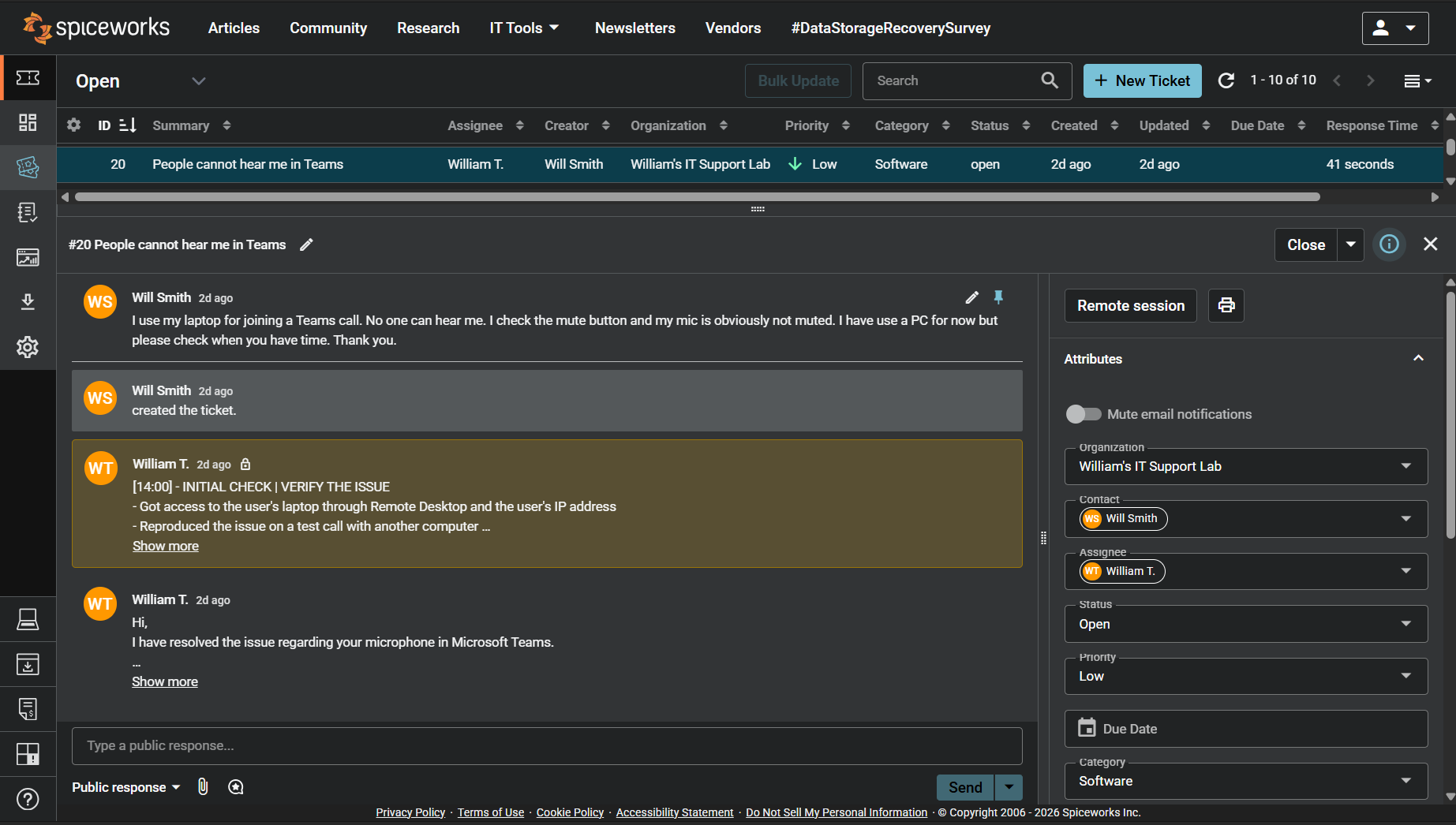
Screenshot: Complete ticket view in Spiceworks showing ticket flow and documentation (click to view full size)