ID: #016/Multi-User Printer Connectivity Failure - IP Address Conflict
Ticket Details
- Priority: High
- Category: Printer
- Time to Resolve: 2 hours 15 mintues
User's Report
"We were able to connect to the office printer a couple of days ago. But for some reason it decided to stop working. We already tried to turn it on and off but nothing change. No one in the office is able to print anything!"
My Troubleshooting Process
[13:00] - INITIAL ASSESSMENT
- Issue Verified: Confirmed the printer is showing "Offline" on multiple user workstations.
- Physical Check: Inspected the unit on-site. LCD display shows "Ready" with a solid green status light. No error codes or paper jams present.
- Network Connectivity: Attempted to access the printer’s web interface (EWS) via http://192.168.1.50. Connection timed out. Attempted ping 192.168.1.50; received intermittent request timeouts and high latency.

[13:30] - DIFFERENTIAL DIAGNOSIS
- Spooler Check: Restarted Print Spooler on a test workstation; issue persisted. Ruled out local software/driver faults.
- Hardware/Port Check: Verified the Link/Activity lights on the printer’s NIC are active. Swapped the Ethernet cable with a known-working Cat6 patch cord; no change.
- IP Conflict Suspicion: Noticed that while the printer was powered OFF, the IP address 192.168.1.50 was still responding to pings. This indicates a duplicate IP address on the network.

[14:15] - INVESTIGATION & IDENTIFICATION
- Network Sweep: Performed a scan using Advanced IP Scanner. Identified two devices claiming 192.168.1.50.
- Device A: MAC Address associated with "Brother Industries." (which is the printer itself).
- Device B: MAC Address associated with "Dell" (labeled as "GUEST-LAPTOP").
- Root Cause: A guest user manually configured a Static IP on their laptop that overlapped with the printer’s existing DHCP reservation. This caused an IP conflict, forcing the printer’s network stack to drop the connection.

[14:45] - REMEDIATION & INFRASTRUCTURE HARDENING
- Immediate Fix: Disconnected the guest laptop from the network and released the IP. The printer immediately became reachable.
- DHCP Optimization: Accessed the router configuration.
- Modified the DHCP Scope: Reduced the dynamic pool to 192.168.1.100 - 192.168.1.254.
- Permanent Reservation: Moved the printer to a Permanent DHCP Reservation at 192.168.1.50 (now safely outside the dynamic range).
- Validation: Executed ping 192.168.1.50 -t for 10 minutes with 0% packet loss. Verified successful test prints from three separate workstations.

[15:15] - RESOLUTION
Informed the client of the conflict. Provided the guest user with the correct "Auto-DHCP" settings for future visits.
Resolution & Communication
[13:00] - INITIAL ASSESSMENT
- Issue Verified: Confirmed the printer is showing "Offline" on multiple user workstations.
- Physical Check: Inspected the unit on-site. LCD display shows "Ready" with a solid green status light. No error codes or paper jams present.
- Network Connectivity: Attempted to access the printer’s web interface (EWS) via http://192.168.1.50. Connection timed out. Attempted ping 192.168.1.50; received intermittent request timeouts and high latency.
[13:30] - DIFFERENTIAL DIAGNOSIS
- Spooler Check: Restarted Print Spooler on a test workstation; issue persisted. Ruled out local software/driver faults.
- Hardware/Port Check: Verified the Link/Activity lights on the printer’s NIC are active. Swapped the Ethernet cable with a known-working Cat6 patch cord; no change.
- IP Conflict Suspicion: Noticed that while the printer was powered OFF, the IP address 192.168.1.50 was still responding to pings. This indicates a duplicate IP address on the network.
[14:15] - INVESTIGATION & IDENTIFICATION
- Network Sweep: Performed a scan using Advanced IP Scanner. Identified two devices claiming 192.168.1.50.
- Device A: MAC Address associated with "Brother Industries." (which is the printer itself).
- Device B: MAC Address associated with "Dell" (labeled as "GUEST-LAPTOP").
- Root Cause: A guest user manually configured a Static IP on their laptop that overlapped with the printer’s existing DHCP reservation. This caused an IP conflict, forcing the printer’s network stack to drop the connection.
[14:45] - REMEDIATION & INFRASTRUCTURE HARDENING
- Immediate Fix: Disconnected the guest laptop from the network and released the IP. The printer immediately became reachable.
- DHCP Optimization: Accessed the router configuration.
- Modified the DHCP Scope: Reduced the dynamic pool to 192.168.1.100 - 192.168.1.254.
- Permanent Reservation: Moved the printer to a Permanent DHCP Reservation at 192.168.1.50 (now safely outside the dynamic range).
- Validation: Executed ping 192.168.1.50 -t for 10 minutes with 0% packet loss. Verified successful test prints from three separate workstations.
[15:15] - RESOLUTION
Informed the client of the conflict. Provided the guest user with the correct "Auto-DHCP" settings for future visits.
My response to user:
"Hi,
I’m happy to report that the printer is back online and fully reachable from all workstations.
What Happened: After an investigation, I identified a "Network Address Conflict." This occurs when two devices on the same network try to use the exact same digital address (IP). In this case, a guest device was manually assigned an address that overlapped with the printer's assigned slot, causing the printer to be "pushed" off the network.
What We Fixed: Immediate Resolution: Cleared the conflicting device from the network to restore the printer's connection. Future Prevention: I have reconfigured the network settings to move the printer into a "Protected Zone" (Permanent Reservation). This ensures that no matter what other devices join the network, the printer's address is strictly reserved and cannot be taken by another device.
You are all set to resume printing. If you encounter any further "Offline" messages, please don't hesitate to reach out.
Best regards"
As Documented in Spiceworks
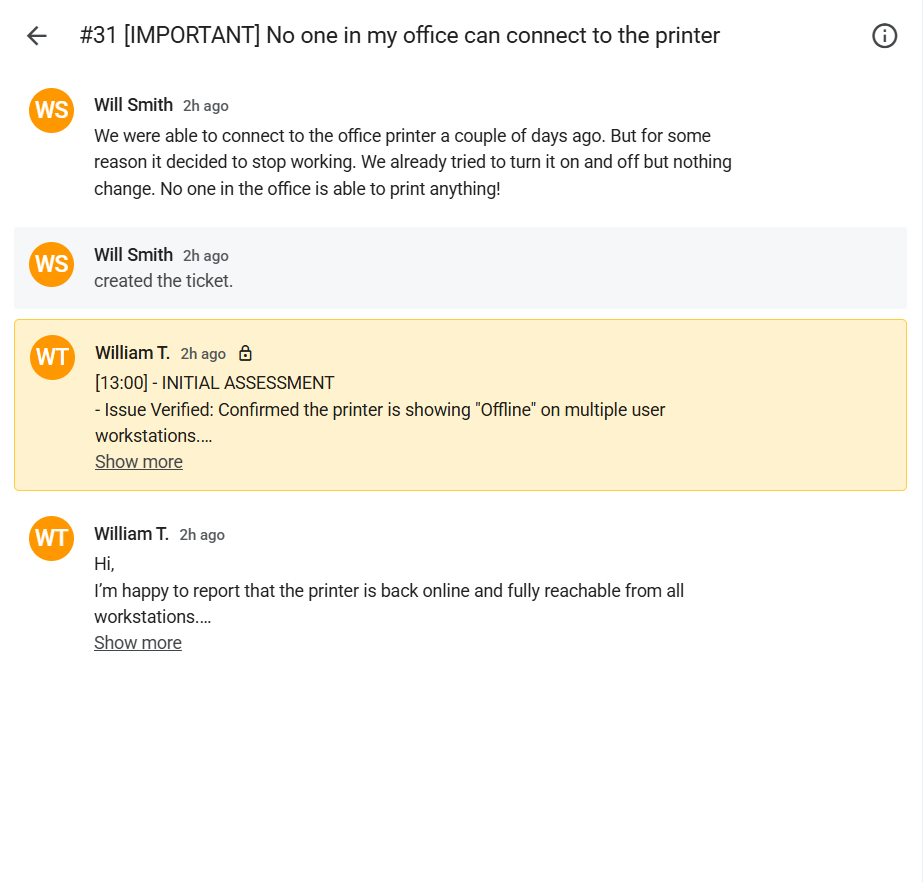
Screenshot: Complete ticket view in Spiceworks showing ticket flow and documentation (click to view full size)