ID: #014/Remote Desktop Connectivity Failure - Power Management & VPN Configuration
Ticket Details
- Priority: High
- Category: Network
- Time to Resolve: 20 mintues
User's Report
"I'm trying to remote desktop into my work computer from home, but I keep getting an error saying 'Remote Desktop can't connect.' I’ve tried three times. I really need to access my files for tomorrow's presentation. Can someone look into this?"
My Troubleshooting Process
[16:30] - INITIAL CHECK | VERIFY CONNECTIVITY
- Contacted the user via phone to gather information about their home setup.
- VPN Verification: Noticed the user was not signed into the corporate VPN. Instructed the user to connect to the GlobalProtect VPN client first.
- Ping Test: Even after VPN connection, attempted to ping the office PC via IP address (10.0.5.42); received "Request timed out."

[16:30] - ASSESSMENT
- The office computer is either off, disconnected from the network, or blocking ICMP traffic.

[16:45] - REMOTE INVESTIGATION | CONFIGURATION & POWER CHECK
- Went to David's office desk, discovered the computer was in "Sleep Mode" due to power-saving settings.
- Woke the machine and logged in.
- RDP Settings: Accessed System, then Remote Desktop and verified "Enable Remote Desktop" was toggled ON.
- NLA Check: Clicked "Advanced Settings" and noticed "Require computers to use Network Level Authentication (NLA)" was checked.
- Firewall Check: Opened "Windows Defender Firewall with Advanced Security." Verified that Inbound Rules for "Remote Desktop - User Mode (TCP-In)" on Port 3389 were enabled for the Domain profile.

[17:15] - FOLLOW UP TROUBLESHOOTING | RESOLUTION
- Power Management: Accessed "Power & Sleep" settings and changed "When plugged in, PC goes to sleep" to "Never."
- NLA Adjustment: Temporarily disabled NLA to test compatibility with the user’s home device.
- Verification: Asked the user to attempt the RDP connection again while on VPN. The user successfully reached the login prompt and accessed their desktop.
- Educated the user on the "Two-Step" requirement: 1. Connect to VPN, 2. Ensure the office PC is never manually shut down before leaving for the day.
Resolution & Communication
[16:30] - INITIAL CHECK | VERIFY CONNECTIVITY
- Contacted the user via phone to gather information about their home setup.
- VPN Verification: Noticed the user was not signed into the corporate VPN. Instructed the user to connect to the GlobalProtect VPN client first.
- Ping Test: Even after VPN connection, attempted to ping the office PC via IP address (10.0.5.42); received "Request timed out."
[16:30] - ASSESSMENT
- The office computer is either off, disconnected from the network, or blocking ICMP traffic.
[16:45] - REMOTE INVESTIGATION | CONFIGURATION & POWER CHECK
- Went to David's office desk, discovered the computer was in "Sleep Mode" due to power-saving settings.
- Woke the machine and logged in.
- RDP Settings: Accessed System, then Remote Desktop and verified "Enable Remote Desktop" was toggled ON.
- NLA Check: Clicked "Advanced Settings" and noticed "Require computers to use Network Level Authentication (NLA)" was checked.
- Firewall Check: Opened "Windows Defender Firewall with Advanced Security." Verified that Inbound Rules for "Remote Desktop - User Mode (TCP-In)" on Port 3389 were enabled for the Domain profile.
[17:15] - FOLLOW UP TROUBLESHOOTING | RESOLUTION
- Power Management: Accessed "Power & Sleep" settings and changed "When plugged in, PC goes to sleep" to "Never."
- NLA Adjustment: Temporarily disabled NLA to test compatibility with the user’s home device.
- Verification: Asked the user to attempt the RDP connection again while on VPN. The user successfully reached the login prompt and accessed their desktop.
- Educated the user on the "Two-Step" requirement: 1. Connect to VPN, 2. Ensure the office PC is never manually shut down before leaving for the day.
My response to user:
"Hi,
I’m following up to confirm that your Remote Desktop access is now working.
We identified three small hurdles that were blocking your connection:
VPN: Remote Desktop requires the corporate VPN to be active first to create a secure "tunnel" to the office.
Power Settings: Your office PC had entered "Sleep Mode," which prevents it from accepting remote signals. I have updated your settings so the computer stays awake and ready for you to connect.
Authentication: I adjusted a security setting (NLA) on your office machine to better communicate with your home laptop.
You should be all set for your presentation tomorrow! Just remember to connect to the VPN first and leave your office computer turned on when you leave the building.
Best regards,"
As Documented in Spiceworks
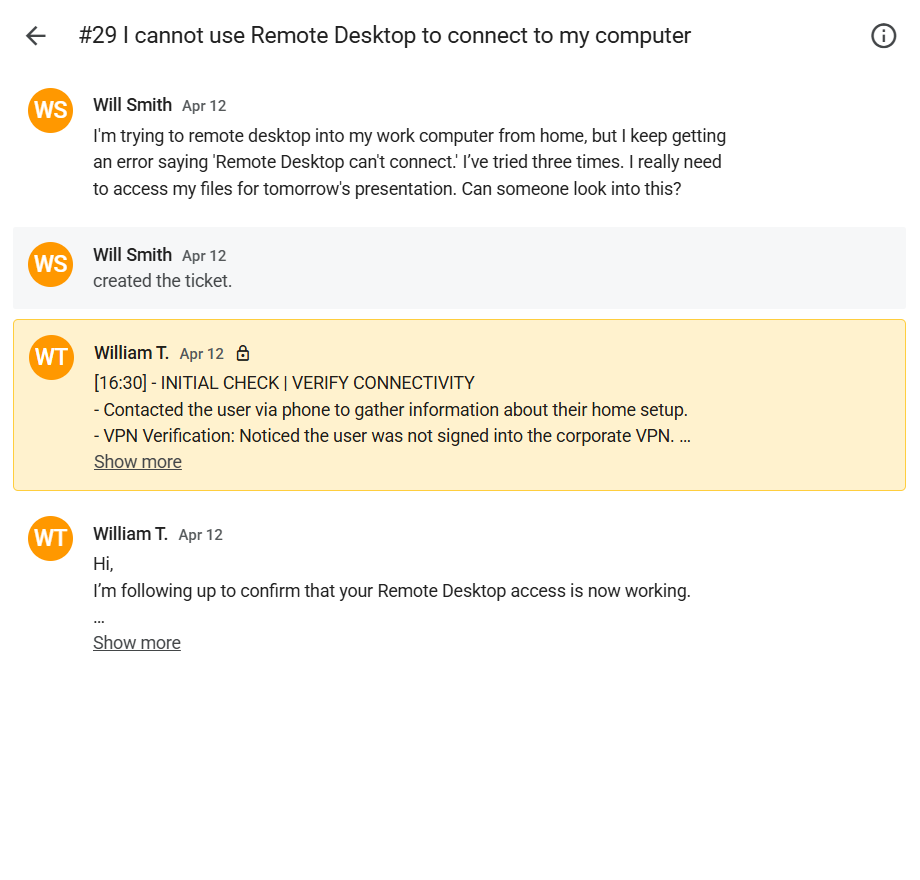
Screenshot: Complete ticket view in Spiceworks showing ticket flow and documentation (click to view full size)