ID: #003/Peripheral Disconnection & System Overheating
Ticket Details
- Priority: High
- Category: Hardware
- Time to Resolve: 3.5 hour
User's Report
"I really need some help. I am working on an old company-issued laptop. I have requested an upgrade many times, but the company said they didn't have enough at the time. I've been using it for more than a year now. Last weekend, my keyboard and mouse disconnected suddenly. I plugged it in and out and somehow got it to work again. But every time I open some large files to work on, they disconnect again. The problem is not persistent, so it might be working fine when you come to check.
I cannot work properly and since it's the end of the month my workload is heavy. Please fix this as soon as possible. "
My Troubleshooting Process
[9:00] - INITIAL CONTACT | VERIFY PROBLEM
- Talked to the user and gathered some information:
- Laptop model: Dell Latitude 5410 (circa 2020), the native keyboard is faulty and cannot function properly
- External Keyboard: Logitech K120
- External Mouse: Logitech M100
- The laptop battery is always empty and stays at 10% even though it is plugged in. Quick check shows no swelling
- The user reproduced the problem by working on a large file. After 10 minutes, both the external keyboard and mouse disconnected. Noticed that the device performance was also sluggish, with the fan running extremely loud
- Suspected problem: Power issue or Overheating

[9:35] - FOLLOW UP TROUBLESHOOTING | GATHER MORE INFORMATION
- Restarted the system, the problem persists
- Rebooted the computer, used F12 to access Diagnostics, Battery Healthy under Primary Battery said "Good"
- Open Windows Command Prompt, used powercfg /batteryreport, saved HTML report file under C:Windows:System32, Full Charge Capacity is at 93% Design Capacity
- Quick Assessment: The power issue came from the power supply since the battery is fine

[10:30] - FOLLOW UP TROUBLESHOOTING | FIX POWER ISSUE
- Plugged the device into two other wall outlets, the battery won't get past 10%
- Use another known good AC adapter, the battery started to charge and reach 100%
- Tried plugging back the external keyboard and mouse, reproduced the problem,  the peripherals worked, the issue was solved
- Quick Assessment: The initial problem was fixed, but the laptop fan was still working very loudly, and the sluggish performance persist

[11:15] - FURTHER TROUBLESHOOTING | FIX OVERHEATING ISSUE
- Requested to check further into the performance issue and got approval from the user
- Reproduced the problem while putting my hand under the vents, felt no wind even though the fan was running loudly
- Used a small flashlight to shine through the vent, noticed a gray carpet of dusk
- Unplugged the device and turned it off completely, proceeded to open the laptop case, noticed that dust had filled up in the heatsink, the fan, and other component
- Removed dust with compressed air and brush (anti-static)
- Opened the heatsink and noticed the old thermal paste had dried up
- Applied new Artic MX-6 thermal paste
- Put everything back together, reproduced the problem, no fan noise appeared, and the performance was improve
- Confirmed with the user, the user was happy with the service
- Educate the user on general device health and hygiene

[12:30] - FINAL ASSESSMENT
- Root Cause: System was suffering from Thermal Throttling due to dust piled up in the heatsink, causing the fan to draw maximum current. Simultaneously, the AC adapter was faulty and insufficient to support the peak fan draw. So if the "USB Selective Suspend" in Windows Power Options is enabled, it will shut off USB ports to save energy
- Resolution: Issued the user with a new AC adapter, cleaned the device case, and re-applied thermal paste
Resolution & Communication
I cannot work properly and since it's the end of the month my workload is heavy. Please fix this as soon as possible. "
[9:00] - INITIAL CONTACT | VERIFY PROBLEM
- Talked to the user and gathered some information:
- Laptop model: Dell Latitude 5410 (circa 2020), the native keyboard is faulty and cannot function properly
- External Keyboard: Logitech K120
- External Mouse: Logitech M100
- The laptop battery is always empty and stays at 10% even though it is plugged in. Quick check shows no swelling
- The user reproduced the problem by working on a large file. After 10 minutes, both the external keyboard and mouse disconnected. Noticed that the device performance was also sluggish, with the fan running extremely loud
- Suspected problem: Power issue or Overheating
[9:35] - FOLLOW UP TROUBLESHOOTING | GATHER MORE INFORMATION
- Restarted the system, the problem persists
- Rebooted the computer, used F12 to access Diagnostics, Battery Healthy under Primary Battery said "Good"
- Open Windows Command Prompt, used powercfg /batteryreport, saved HTML report file under C:Windows:System32, Full Charge Capacity is at 93% Design Capacity
- Quick Assessment: The power issue came from the power supply since the battery is fine
[10:30] - FOLLOW UP TROUBLESHOOTING | FIX POWER ISSUE
- Plugged the device into two other wall outlets, the battery won't get past 10%
- Use another known good AC adapter, the battery started to charge and reach 100%
- Tried plugging back the external keyboard and mouse, reproduced the problem, the peripherals worked, the issue was solved
- Quick Assessment: The initial problem was fixed, but the laptop fan was still working very loudly, and the sluggish performance persist
[11:15] - FURTHER TROUBLESHOOTING | FIX OVERHEATING ISSUE
- Requested to check further into the performance issue and got approval from the user
- Reproduced the problem while putting my hand under the vents, felt no wind even though the fan was running loudly
- Used a small flashlight to shine through the vent, noticed a gray carpet of dusk
- Unplugged the device and turned it off completely, proceeded to open the laptop case, noticed that dust had filled up in the heatsink, the fan, and other component
- Removed dust with compressed air and brush (anti-static)
- Opened the heatsink and noticed the old thermal paste had dried up
- Applied new Artic MX-6 thermal paste
- Put everything back together, reproduced the problem, no fan noise appeared, and the performance was improve
- Confirmed with the user, the user was happy with the service
- Educate the user on general device health and hygiene
[12:30] - FINAL ASSESSMENT
- Root Cause: System was suffering from Thermal Throttling due to dust piled up in the heatsink, causing the fan to draw maximum current. Simultaneously, the AC adapter was faulty and insufficient to support the peak fan draw. So if the "USB Selective Suspend" in Windows Power Options is enabled, it will shut off USB ports to save energy
- Resolution: Issued the user with a new AC adapter, cleaned the device case, and re-applied thermal paste
My response to user:
"Hi,
I have completed the repairs on your Dell Latitude 5410. After a full investigation, I found that your system was suffering from two related issues: a faulty power supply and internal overheating.
What was fixed:
1. Power Supply: Your original AC adapter was failing to provide enough power, which prevented your battery from charging past 10% and caused your USB ports to shut down. I have issued you a new replacement AC adapter.
2. Thermal Maintenance: Your laptop was "Thermal Throttling" (slowing down to protect itself) due to significant dust buildup. I have performed an internal deep clean and re-applied high-performance thermal paste to the processor.
3. Results: The laptop is now charging to 100%, your Logitech keyboard and mouse are stable, and the "sluggish" performance has been resolved. The fan should also run much quieter now.
Some tips for your device heath:
1. Airflow: Try to use your laptop on a hard, flat surface to keep the vents clear.
2. Charging: If you ever see the battery stuck at 10% again, please let us know immediately, as this is an early warning sign of power failure.
Your ticket is now marked as resolved. Please let me know if you need any further assistance!"
As Documented in Spiceworks
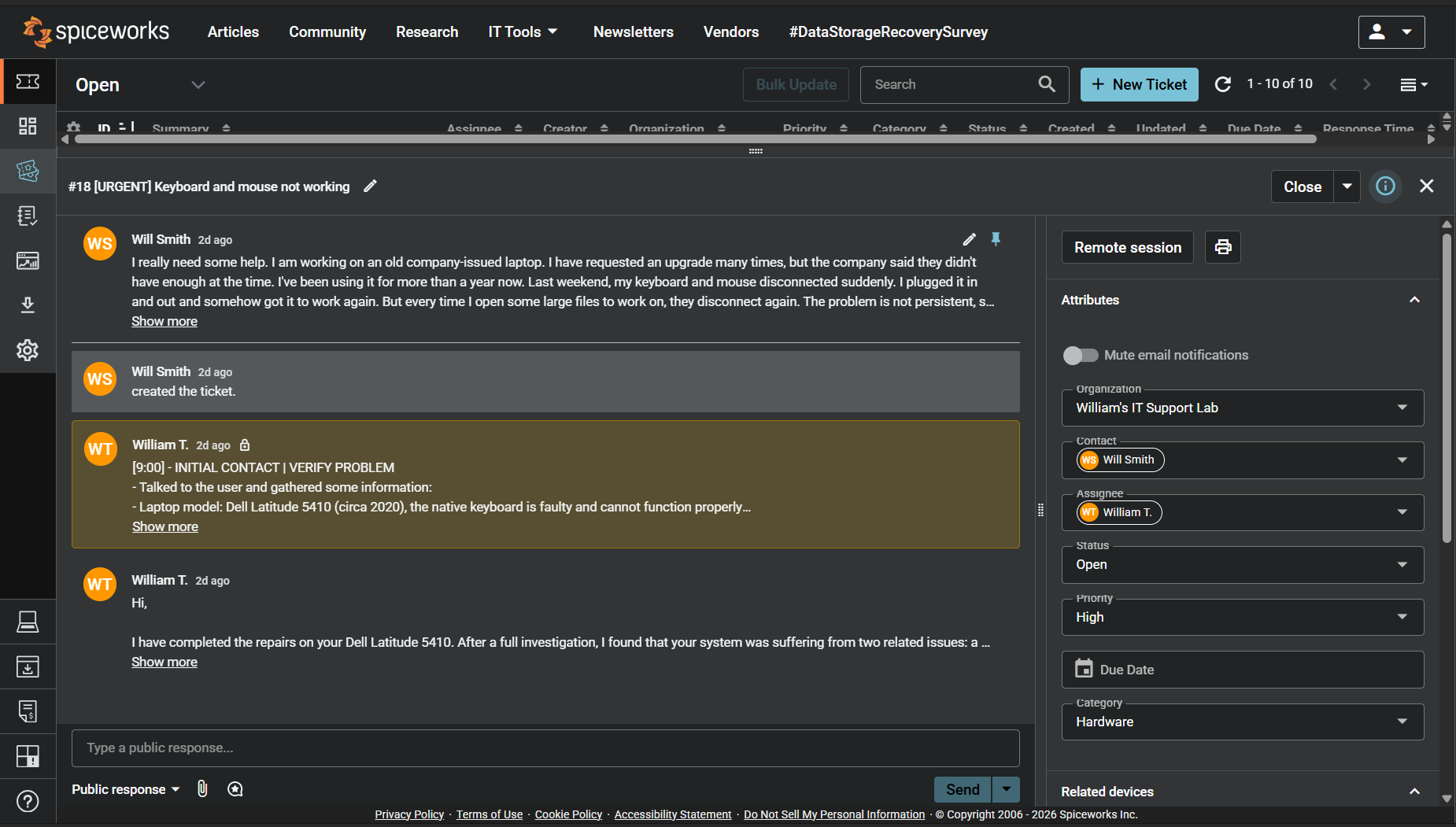
Screenshot: Complete ticket view in Spiceworks showing ticket flow and documentation (click to view full size)