ID: #002/Peripheral Disconnection & System Overheating
Ticket Details
- Priority: High
- Category: Hardware
- Time to Resolve: 1 hour
User's Report
"We were issued an old TV for our office as a extra monitor that can be plug in with everyone laptop. The technician who worked on it was rushed and left right after the TV turn on and display the login screen. But when we use the TV, our desktop display was off! The corner was gone, the app was missing part of it's logo, we cannot exit the browser because the cross at the corner was gone.
We need this fix immediately! All of this would never happened if your technician do their job!
"
My Troubleshooting Process
[9:00] INITIAL CONTACT  / INFORMATION GATHERING
- The user was highly frustrated. The previous technician had installed the following items:
- TV: Old LED (circa 2015), brand is unknown
- HDMI cable (may or may not be paired with a DisplayPort adapter) for display connection
- The TV displayed “No connection” when powered on while connected with an HDMI cable and a DisplayPort adapter

[9:10] FOLLOW-UP TROUBLESHOOTING | NO DISPLAY ISSUE
- Turned off the TV and powered it on after 5 minutes, the issue persisted
- Reseated the HDMI and the DisplayPort adapter, the issue persisted
- Used other HDMI ports on the TV and changed source channel through HDMI 1, HDMI 2, and HDMI 3 accordingly, the issue persisted
- Used another known good DisplayPort adapter, the issue persisted
- Used another HDMI cable, the issue persisted
- Used a known good HDMI cable, a known good DisplayPort adapter, after doing a hard reset on the TV, the display connected and showed the user workstation login page

[10:00] FOLLOW-UP TROUBLESHOOTING | FAULTY DISPLAY | RESOLUTION
- Went into Windows Settings, access the Display menu, changed the scale from 100% to 500% (with 50% different each time). The display was either too small or too big; the disappearing corner issue still persisted
- Still in the Display menu, changed the resolution to 1920 x 1080, 1366 x 768, 1280 x 720, the edges were still missing
- Opened Intel Graphics Command Center, navigate to Display, then Scaling, and then Custom
- Manually changed the sliders to this configuration: Horizontal 92%, Vertical 92%
- Verified all edges, close buttons, and taskbar were visible
- Confirmed with the user: the user opened their web browser (Google), Excel, Word, and confirmed that they liked this configuration
Resolution & Communication
We need this fix immediately! All of this would never happened if your technician do their job! "
[9:00] INITIAL CONTACT / INFORMATION GATHERING
- The user was highly frustrated. The previous technician had installed the following items:
- TV: Old LED (circa 2015), brand is unknown
- HDMI cable (may or may not be paired with a DisplayPort adapter) for display connection
- The TV displayed “No connection” when powered on while connected with an HDMI cable and a DisplayPort adapter
[9:10] FOLLOW-UP TROUBLESHOOTING | NO DISPLAY ISSUE
- Turned off the TV and powered it on after 5 minutes, the issue persisted
- Reseated the HDMI and the DisplayPort adapter, the issue persisted
- Used other HDMI ports on the TV and changed source channel through HDMI 1, HDMI 2, and HDMI 3 accordingly, the issue persisted
- Used another known good DisplayPort adapter, the issue persisted
- Used another HDMI cable, the issue persisted
- Used a known good HDMI cable, a known good DisplayPort adapter, after doing a hard reset on the TV, the display connected and showed the user workstation login page
[10:00] FOLLOW-UP TROUBLESHOOTING | FAULTY DISPLAY | RESOLUTION
- Went into Windows Settings, access the Display menu, changed the scale from 100% to 500% (with 50% different each time). The display was either too small or too big; the disappearing corner issue still persisted
- Still in the Display menu, changed the resolution to 1920 x 1080, 1366 x 768, 1280 x 720, the edges were still missing
- Opened Intel Graphics Command Center, navigate to Display, then Scaling, and then Custom
- Manually changed the sliders to this configuration: Horizontal 92%, Vertical 92%
- Verified all edges, close buttons, and taskbar were visible
- Confirmed with the user: the user opened their web browser (Google), Excel, Word, and confirmed that they liked this configuration
My response to user:
"Hi,
I sincerely apologize for the frustration. Older display technology often requires a specific manual configuration with modern computers that can be easily missed during a quick setup.
I have manually re-calibrated the scaling through the Intel Graphics settings and adjusted the TV’s internal aspect ratio. You should now have a full, clear view of your desktop, including all corners and the taskbar.
If you move this TV to a different laptop in the future, please let us know so we can apply these specific scaling settings for the new device.
Best regards,"
As Documented in Spiceworks
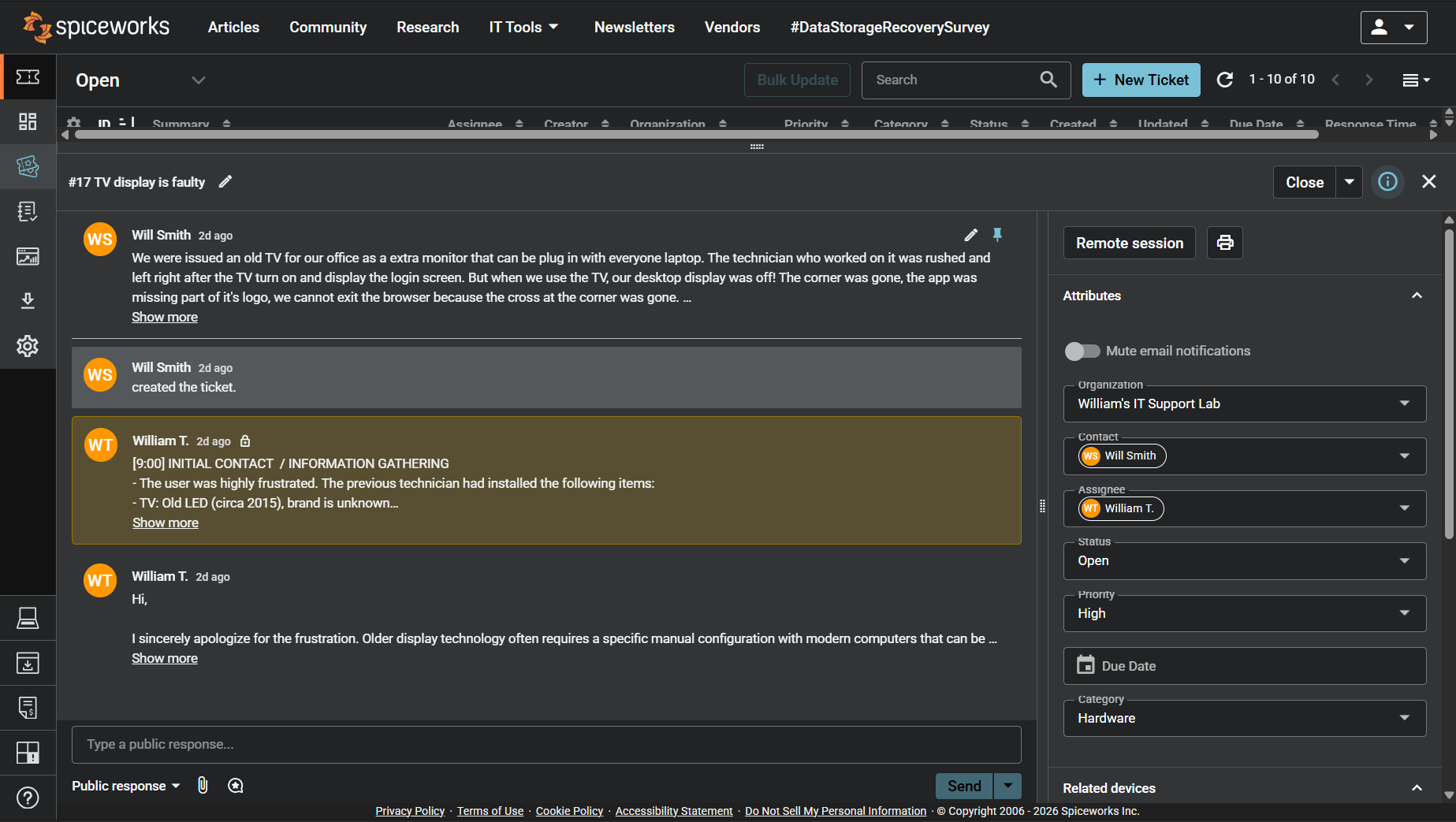
Screenshot: Complete ticket view in Spiceworks showing ticket flow and documentation (click to view full size)